
Tools & Tips
See Your Home Transformed: How to Use Our Free Paint Visualizer
January 15, 2025 · John Patten Painting
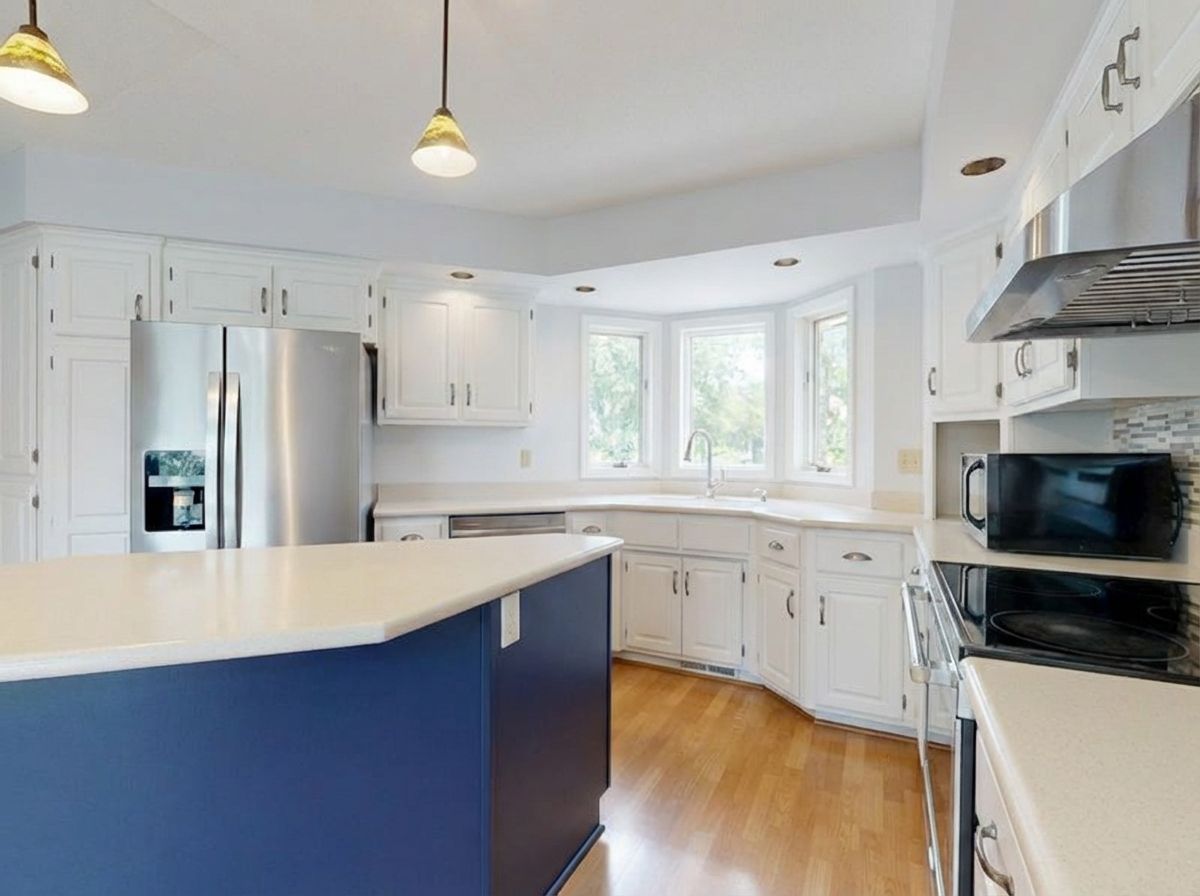
Choosing a paint colour can feel overwhelming. Will that bold blue look too dark? Is the white you picked going to feel too stark? For years homeowners have relied on tiny paint chips and their imagination, and too often they end up disappointed.
A paint visualizer takes a photo of your room and produces a computer-generated preview of the same space in a new colour. It is a quick way to compare ideas before you commit to a single brushstroke.
Examples, not finished jobs
Every visualizer image on this site is clearly labelled as an example. They are previews made by software to show what a colour could look like. They are not photos of kitchens Graeme has painted. Real job photos live on the Our Work page.
What a visualizer is good for
- Comparing classic whites like Simply White or Chantilly Lace
- Trying modern greys like Revere Pewter or Stonington Gray
- Testing bold choices like navy, forest green or black on an island
- Showing family members an idea before you book a quote
Getting a good result
- Use natural daylight and avoid harsh shadows
- Shoot straight on so more of the surface is visible
- Include both upper and lower cabinets, with doors closed
- Step back far enough to capture the whole area you want to change
From preview to real paint
A preview is a starting point. Real paint changes with your light, your floors and your countertops, so Graeme always brings physical samples and talks through sheen and durability before any spraying starts.
Try it yourself: upload a photo on the visualizer page, pick a colour, and if you like the look, tap "Quote on this look" to send it straight to Graeme.